Upgrade
Upgrading the Nuclei SDK with Manual Frameworks
This document explains how to upgrade an existing iOS SDK integration by manually replacing previously integrated frameworks with newer versions.
warning
Use this guide only if the SDK is already integrated in the application.
Prerequisites
- New SDK package containing updated
.xcframeworkfiles - Access to the application target settings in Xcode
Steps to Upgrade the SDK
-
Remove existing SDK frameworks
- Remove all existing Nuclei SDK frameworks from the Project Navigator.
- Remove the same frameworks from:
-
Target → General → Frameworks, Libraries, and Embedded Content
-
⚠️ Skipping this step may lead to duplicate symbols or undefined runtime behavior.
-
Clean the build
- Select Product → Clean Build Folder in Xcode, or use
Shift + Cmd + K.
- Select Product → Clean Build Folder in Xcode, or use
-
Delete DerivedData
- Click Xcode → Settings from the top menu.
- Open the Locations tab.
- Click the arrow icon next to Derived Data to open it in Finder.
- Delete all contents inside the DerivedData folder.
-
Add new SDK frameworks
- Add all the new Nuclei
.xcframeworkfiles to the App Target. - Set all frameworks to Embed & Sign.
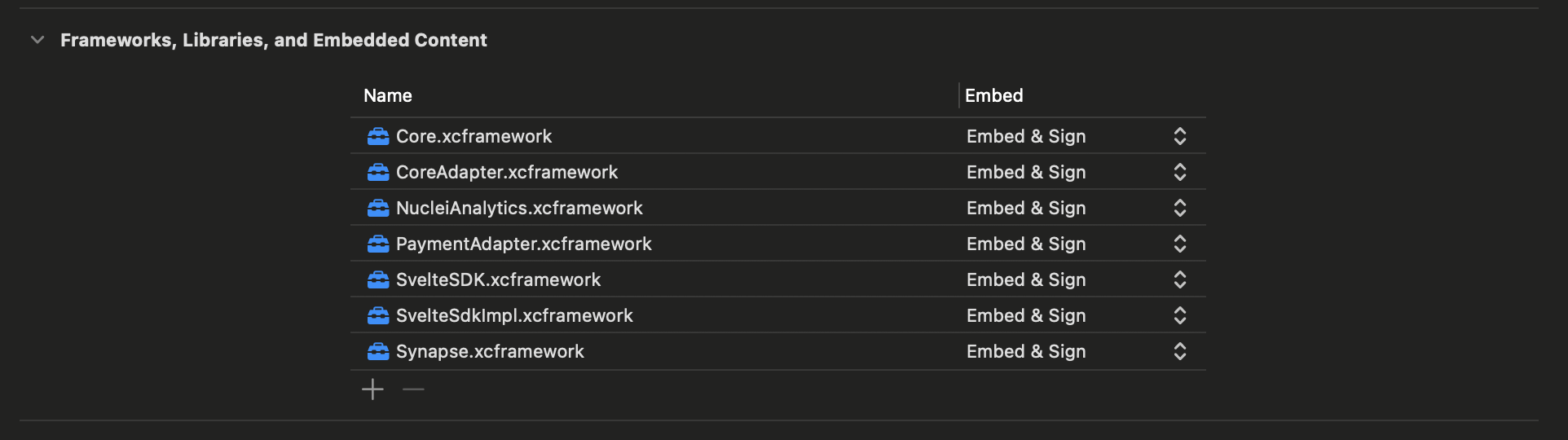
- Add all the new Nuclei
-
Build the application
- Build and run the app.
- Verify that the application builds and launches without errors.